
Registration Application Forms
Choose your preferred forms below, from either JPEG files or PDF files
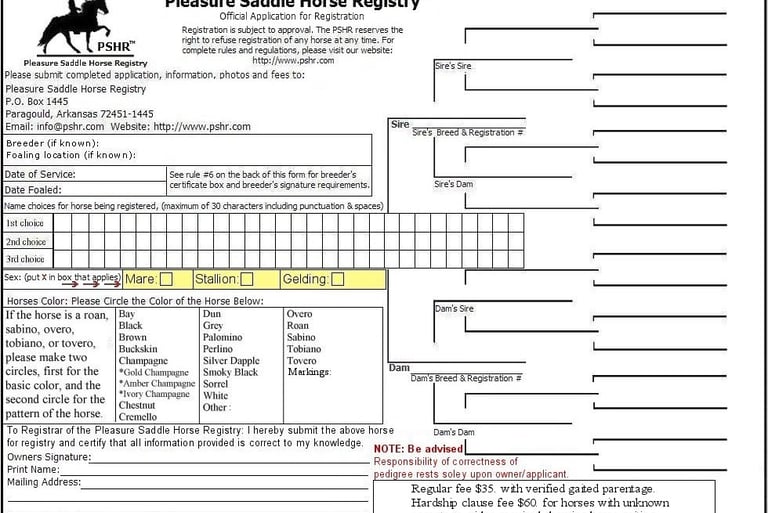
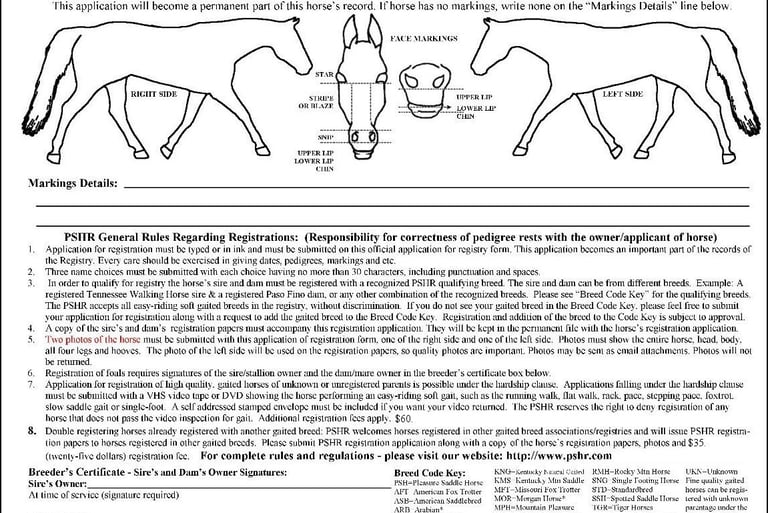
You can download, fill in the PDF form, save it and then send it to us via email or you can print and mail in the PDF or JPEG forms below. Note: You can type in all your information in the blue fields before you print them. (If you have the full version of Adobe Acrobat the fields will be in white.) Please use ALL CAPS when filling in your PDF application forms. Please send in both page 1 and page 2 forms below. If you need further instructions for using and filling in PDF forms, please scroll to bottom of this page.
Registration Application Page 1
Registration Application Page 2
The links above were created in the Portable Document Format, which is known most commonly by its extension .PDF. If you are new to Adobe Acrobat's Portable Document Format, please visit the Adobe web site for complete steps for the download and use of Adobe Acrobat Reader. This is a Free download.
PLEASE NOTE: If you do not wish to download the Adobe Acrobat Reader, then please use the JPEG file registration application link below.
Click below for front and back page JPEG files.
Page 1 JPEG file
Page 2 JPEG file
If you have trouble, please email us. We will be happy to email them to you as attachments or mail them by US Mail. Thank you.
If you mail your application via U.S. Mail, then please allow 6 weeks for the registration certificate to be completed and mailed to you.
Your can email forms to info@pshr.com or pshr_registry@zoho.com
Or if you prefer to send U.S. Mail our address is:
Pleasure Saddle Horse Registry
P.O. Box 1445
Paragould, AR 72451-1445
Further Instructions for Using and Filling in PDF Forms
Filling, saving, and emailing a PDF is simple. First, download and save the blank PDF directly to your computer. Next, open the saved file in a dedicated PDF reader (like the free Adobe Acrobat Reader), fill it out, re-save it, and manually attach the file to an email and send to info@pshr.com or pshr_registry@zoho.com
1. Download and Save the Blank PDF
Always download and save the file to your computer before filling it out. Filling out a form directly inside a web browser can cause your entered data to be lost.
Right-click the PDF link or download button on your web browser.
Select "Save As" or "Download Linked File".
Choose a location (like your Desktop or Documents folder) so you can easily find it again.
2. Fill Out the Form
Navigate to the saved PDF on your computer.
Right-click the file, select Open With, and choose your PDF reader (e.g., Adobe Acrobat or Adobe Reader).
Click on the highlighted text fields or checkmarks to complete the form.
3. Save the Completed PDF
Once finished, you must save your entered information so it is permanently locked into the document.
Go to the top menu and select File.
Click Save As....
Choose a recognizable name that you will remember (e.g., Form_Completed_YourName.pdf ~ we recommend using the name of the horse you are registering ) and save it to your computer.
Email the Completed File
Open your web-based email (like Gmail, Outlook.com) or your desktop email client.
Create a New Message addressed to info@pshr.com or pshr_registry@zoho.com
Click the Attach File icon (usually depicted as a paperclip). Browse your computer, select the completed PDF you just saved, and attach it to your email and send to us.